Everything Nebula does.
The free version covers what most players need to get a game working with a controller. Pro adds the tools for aiming, busy layouts and games that fight back. Every tag below says which is which.
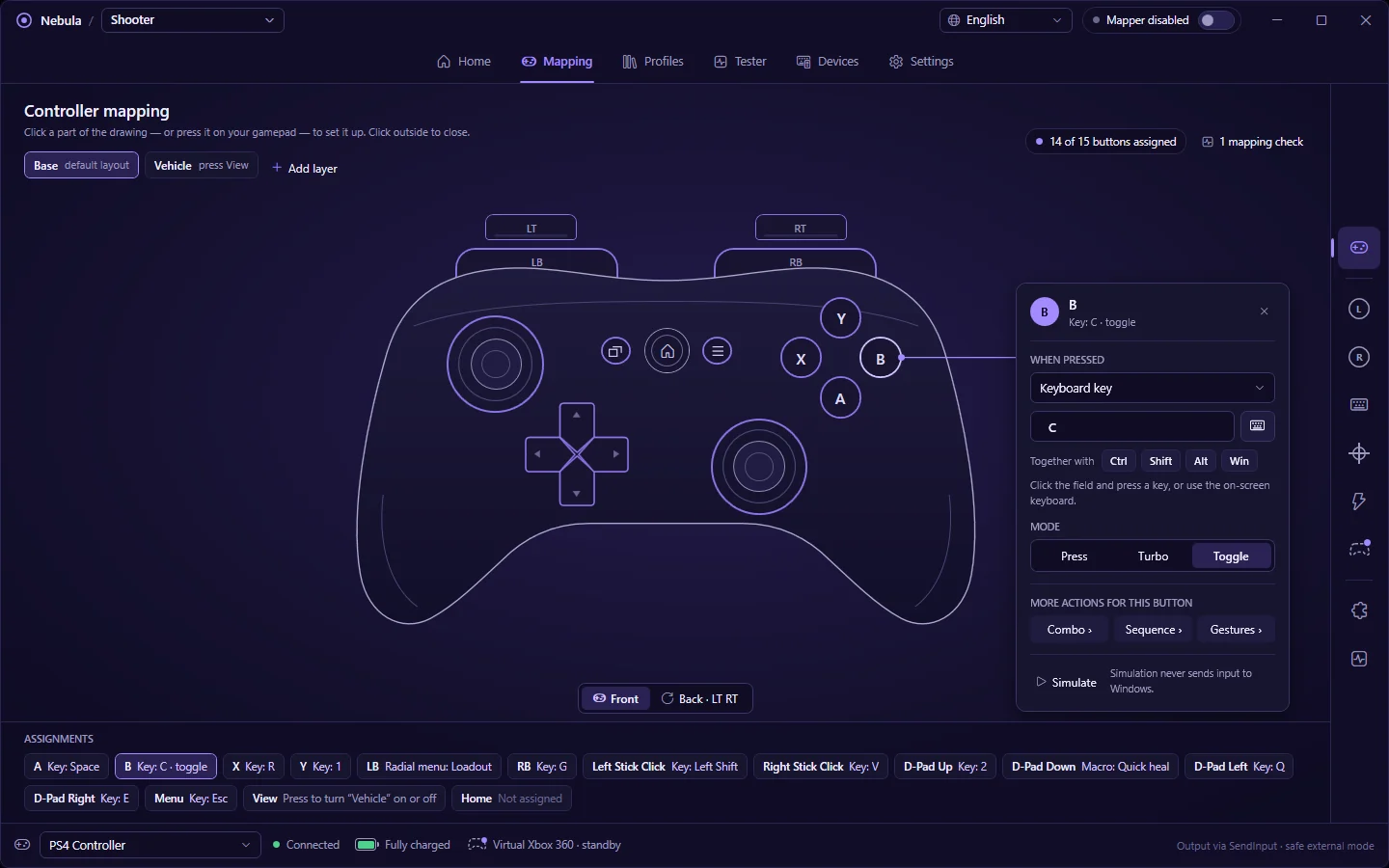
Remap every input.
Click a part of the drawing, or press it on your controller, and choose what it sends.
- Any key, with Ctrl / Shift / Alt / Win — layout-aware names, so a French AZERTY shows the right letters
- Left, right, middle and both side mouse buttons; wheel up and down
- Tap, hold and double-tap on the same button
- Combos of two buttons, and timed key sequences
- Triggers with their own press point; sticks to WASD or to the mouse with a response curve and deadzone
- Turbo at 2–30 presses a second and toggle (hold for me) Pro
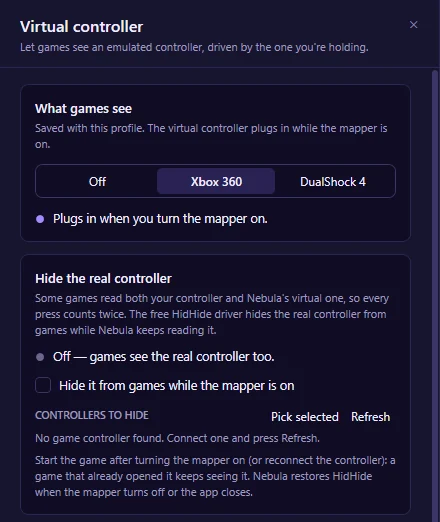
A virtual controller for picky games.
Pick Xbox 360 or DualShock 4 per profile. Nebula plugs a virtual pad in while the mapper runs and feeds it from the controller you're holding.
- Converts any supported pad in one click — PlayStation to Xbox, Switch to PlayStation
- Unmapped inputs pass through; any button can be remapped to another pad button
- Game rumble plays on your real controller
- 1.0 ms median from your pad to the game, measured on our test machine
- Hide the real controller from games while Nebula keeps reading it, so nothing counts twice Pro
Needs the free ViGEmBus driver; hiding needs the free HidHide driver. Both are made by Nefarius and installed separately.
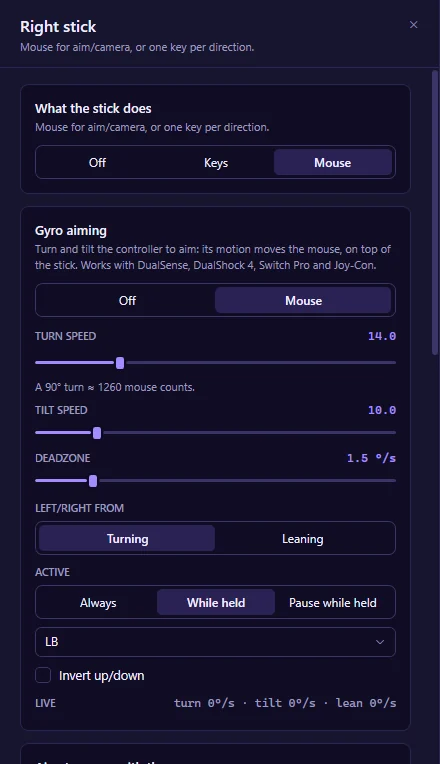
Gyro aiming.
Turn and tilt a DualSense, DualShock 4, Switch Pro or Joy-Con to aim. Motion moves the mouse on top of the stick, so the stick turns and the gyro fine-tunes.
- Separate turn and tilt speed, shown as mouse counts per 90° turn
- A deadzone in °/s, so a controller resting on the desk never drifts
- Left/right from turning, or from leaning like a steering wheel
- Always on, only while a button is held, or paused while held to re-centre
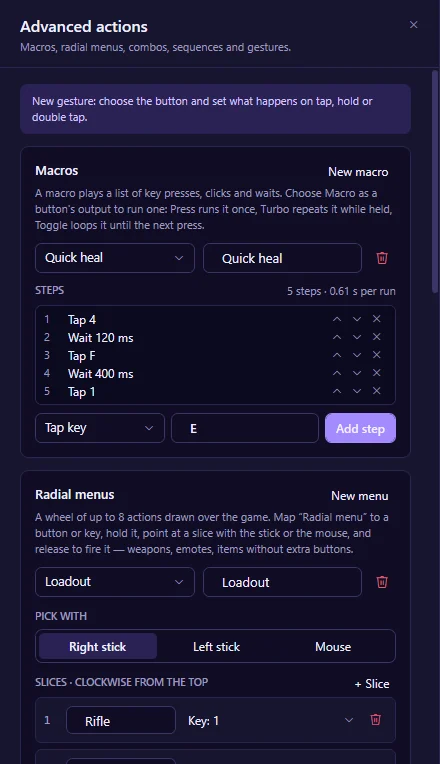
Layers and macros.
One controller, several layouts. A layer switches on while you hold its button, or until you tap it again, and only changes the buttons you choose — the rest keep their base action.
- Up to 10 layers per profile, with a live indicator of the active one
- Macros of up to 64 steps: key taps, holds, clicks, wheel and waits
- Run a macro once, repeat it while held, or loop it until the next press
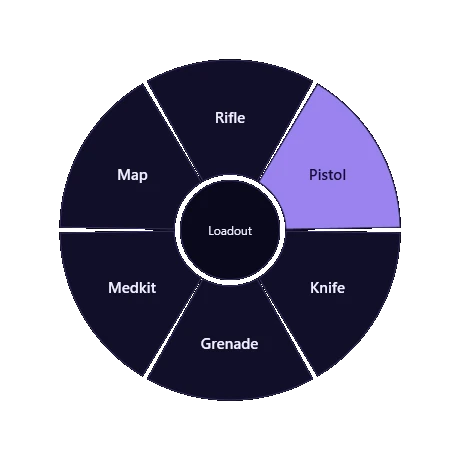
Radial menus.
Hold a button, point, release. Up to 8 menus of 2–8 slices, each slice any output — a key, a click, a macro.
- Pick with the right stick, the left stick or the mouse
- The stick you point with is held back from the game while the menu is open
- Open one from a controller button, a key or a mouse button
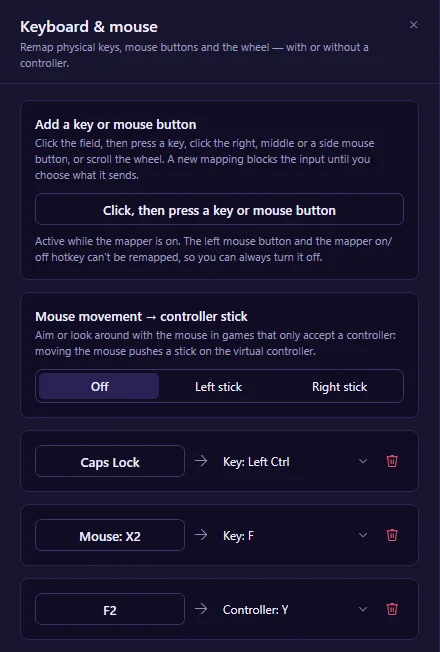
Keyboard and mouse as input.
Remap physical keys, mouse buttons and the wheel to anything a controller button can do — including the virtual controller's buttons, sticks and triggers.
- The original key is blocked, or kept if you tick "also send the original"; a key can simply be muted
- Mixed combos: LB+E, Q+E, Shift + a side button
- WASD to the virtual left stick, with diagonals on the circle — play controller-only games on a keyboard
- Mouse-to-joystick: raw mouse movement steers a virtual stick, with anti-deadzone, smoothing and cursor lock
- The left mouse button and the on/off hotkey can't be remapped, so you can't lock yourself out
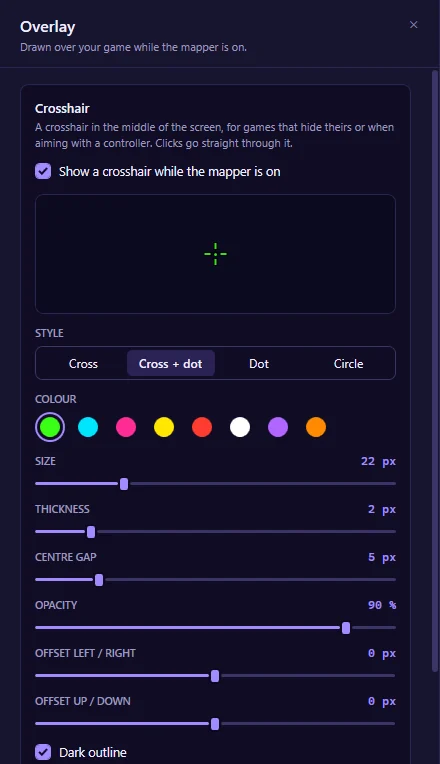
Crosshair overlay.
A crosshair at the centre of the game's screen, drawn on a window that never takes focus or clicks.
- Cross, cross + dot, dot or circle; colour, size, thickness, gap, opacity, outline, offset
- Follows the monitor your game is on
- Show or hide it from any button or key
Works in windowed and borderless games; exclusive full-screen games draw over every window.
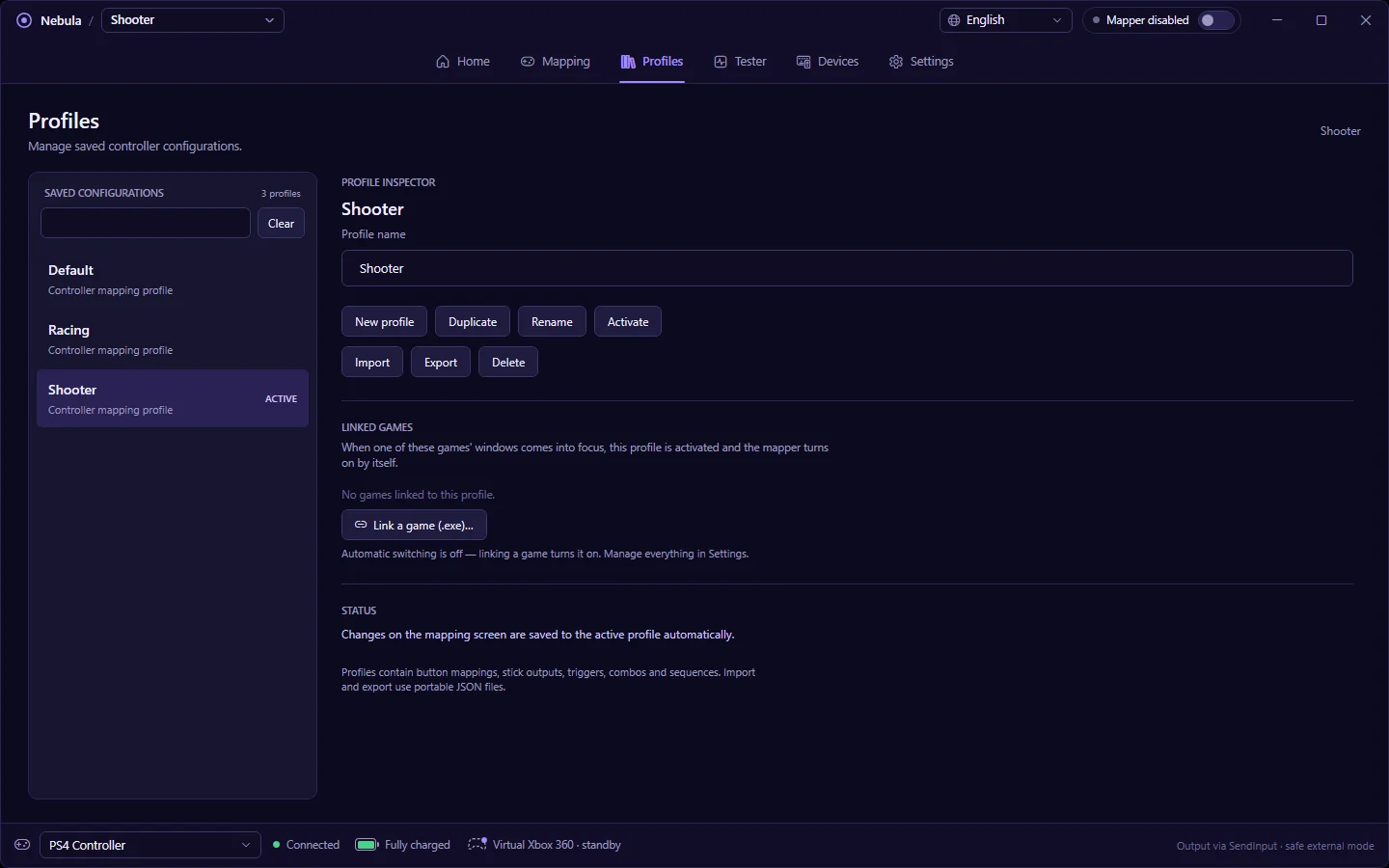
Profiles, per game.
Unlimited profiles. Link a game's .exe and its profile switches on — and the mapper with it — whenever that game comes into focus.
- Optionally turn the mapper off whenever no listed game is in front, so your browser and chat never get game keys
- Step to the next or previous profile from any button or combo
- Import and export profiles as portable JSON
- Ready-made recipes with a preview of every change and undo
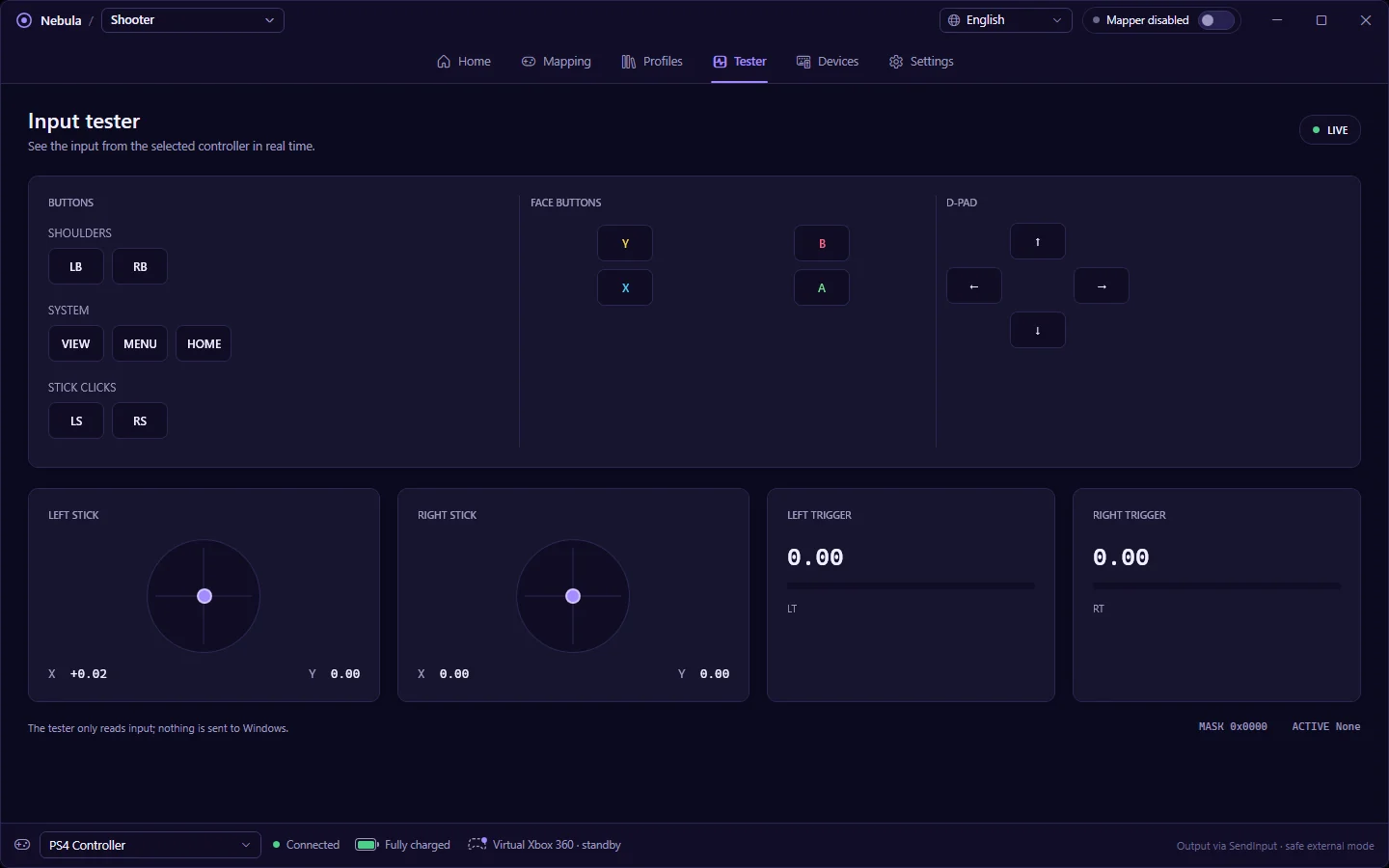
See what your controller sends.
The tester reads every button, stick and trigger live without sending anything to Windows — the quickest way to check a controller, a deadzone or a drifting stick.
- Battery level where the controller appears: a percentage on PlayStation and Switch pads
- The Home / PS button is mappable like any other
- English, Spanish, Portuguese, French, Chinese, Japanese and Korean, switchable live